

How to edit your website

Squarespace is designed to make basic website updates easy. While we recommend leaving larger design, layout, SEO, and technical changes to us, there are a few simple updates you can confidently make yourself.
Updating Text
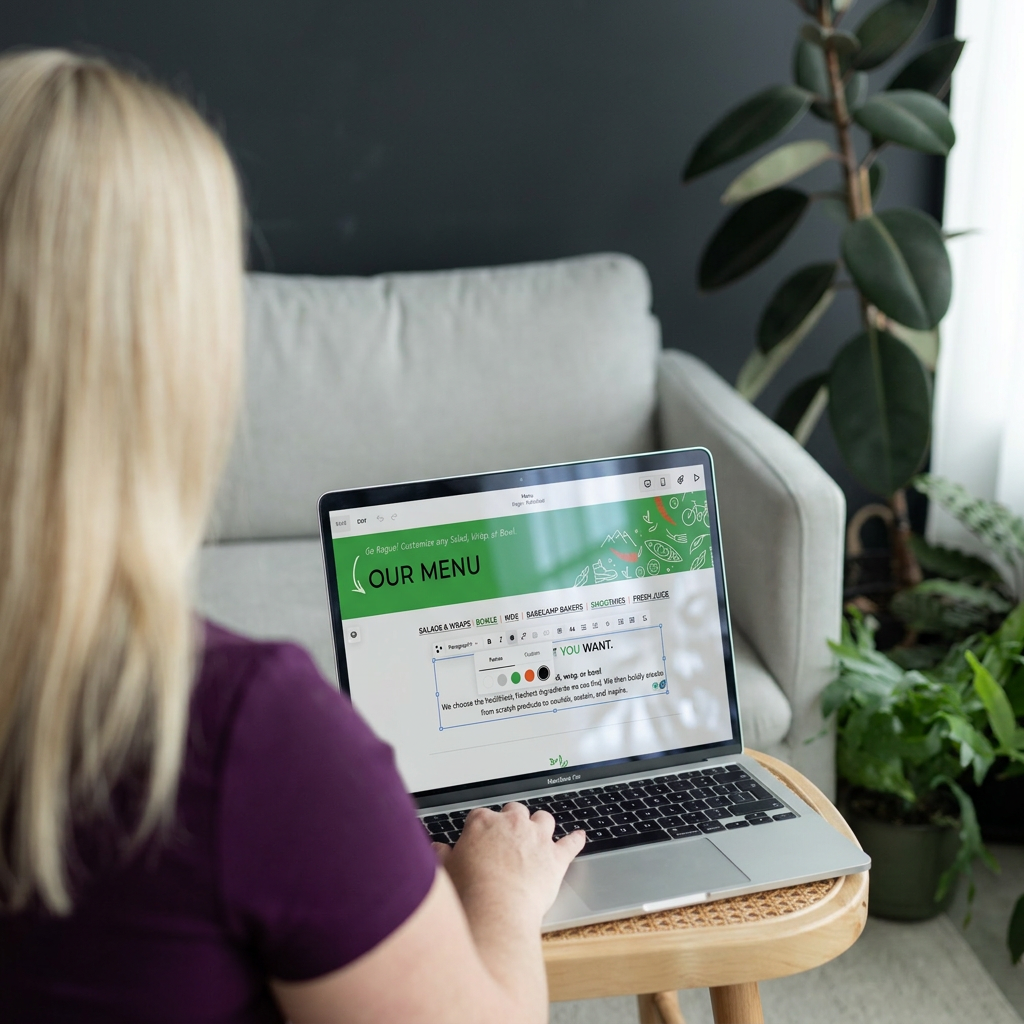
Tip: Keep headings and page structure consistent.
If you're making major content changes, it's worth checking with us first to ensure SEO and page layouts aren't affected.
Need to update a phone number, change a staff member's bio, or refresh some wording?
Log in to your Squarespace account.
Click Website > Pages in the left-hand menu
Navigate to the page you want to edit.
Click Edit in the top left corner of the website page you want to edit.
Click directly on the text you want to change.
Update the wording as needed.
Click Save when finished.
Updating Images
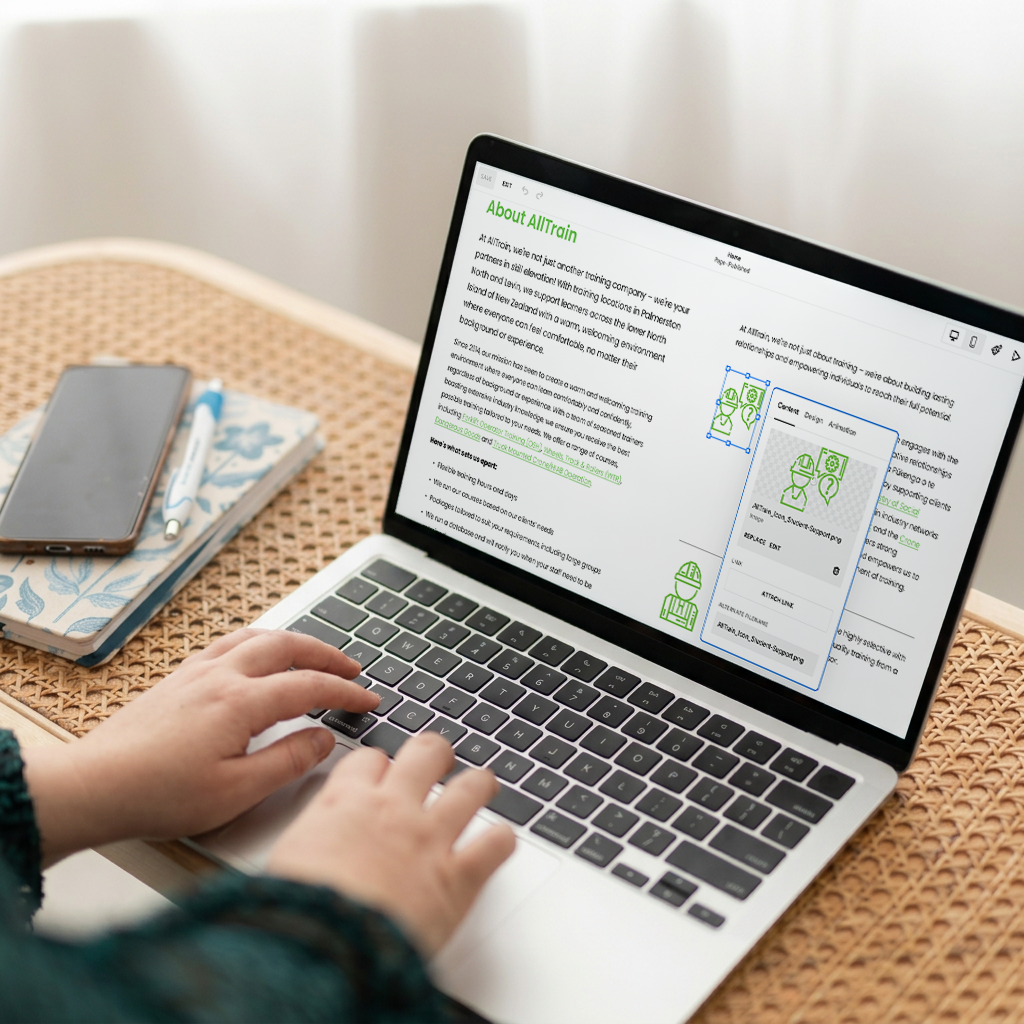
Tip: Try to use images with a similar shape and orientation to prevent any layout issues. You can drag and resize the image box to fit the space. Square guides will appare to help with aligment.
Adding fresh photos is one of the easiest ways to keep your website current.
Log in to your Squarespace account.
Click Website > Pages in the left-hand menu
Navigate to the page you want to edit.
Click Edit in the top left corner of the website page you want to edit.
Select the image block you want to update.
Click the pencil/edit icon.
Click Replace or the Trash can
Upload a new image or select one from your library.
Click Apply and then Save.
For best results:
Use high-quality images.
Use descriptive file names (e.g. fat-bird-creative-logo.jpg rather than IMG_1234.jpg)
Keep image file sizes under 500KB where possible.
Use JPG files for photos and PNG files for graphics with transparent backgrounds.
Avoid screenshots whenever possible.
Write a description of the image in the Image alt text and save the image with relevant image names.
Adding a New Blog Post
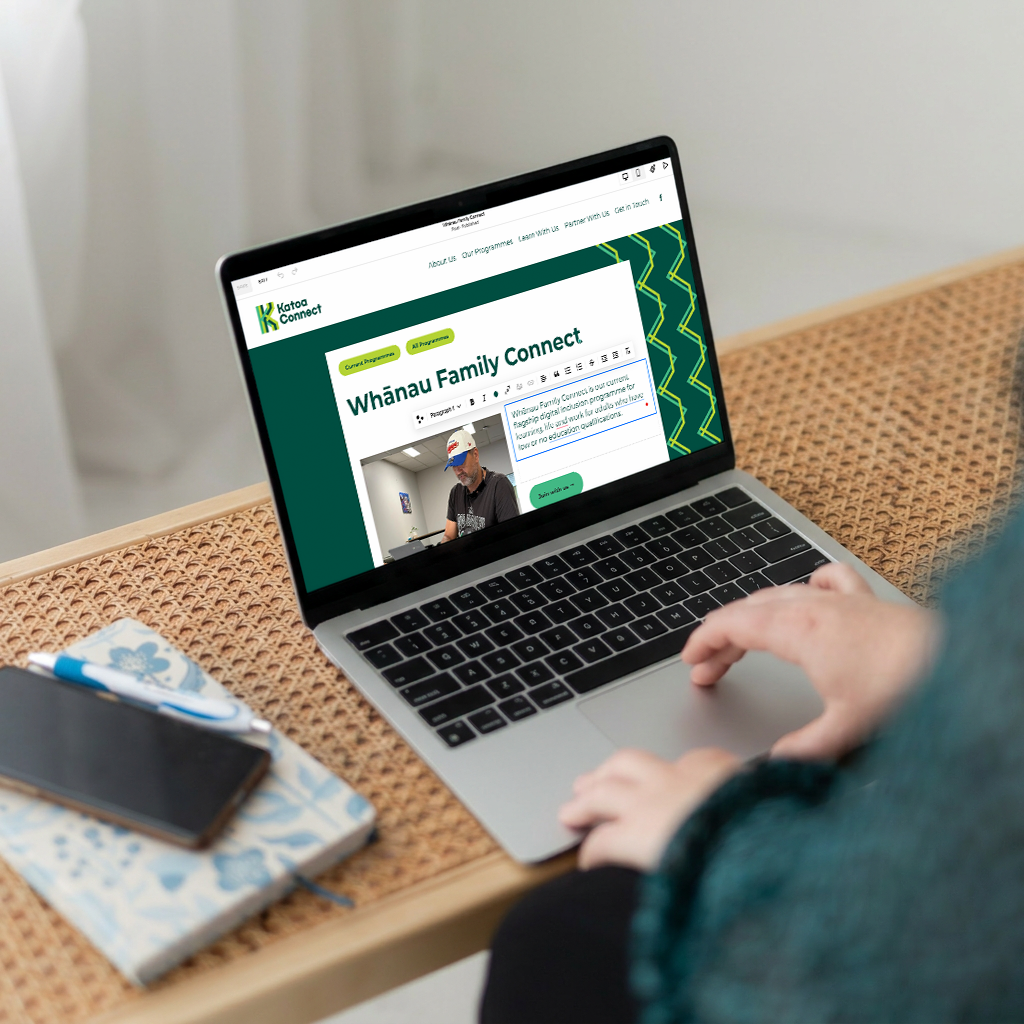
Tip: You can duplicate existing posts by clicking the three dots (...) next to the blog you want to copy in the left-hand menu. You will find this at the bottom of the Content section.
Blog posts are a great way to keep your website fresh and improve search engine visibility.
Log in to your Squarespace account.
Click Website > Pages in the left-hand menu
Navigate to the blog you want to edit.
Click the + button next to “Blog Content”.
Write a Title and add the text. Additional text blocks and buttons can be added when you click on the + icon.
Click Save or Publish when ready.
Then click on the three dots (...) next to your new blog post in the left-hand menu.
Click Settings.
Add a feature image.
Add an Excerpt that explains the post.
Edit the Post URL to match the post.
Go to Options and add the Categories you want the post to feature under.
Go to SEO and write an SEO description of the post.
To update an existing blog post:
Open your Blog page.
Find the post you want to edit.
Click Edit in the top left corner of the post page.
Make your changes.
Click Save.
Need a hand?
While Squarespace makes simple updates easy, we recommend contacting us for:
Layout or design changes
New pages
SEO updates
Mobile responsiveness issues
Domain or DNS changes
Custom code
Form integrations
Website speed improvements
E-commerce setup changes
Accessibility improvements
Google Analytics or Search Console updates
These changes can have a wider impact on your website and are best handled professionally to avoid unexpected issues.
If you're ever unsure whether something is a simple update or not, just send us a message. I'd much rather answer a quick question than have you accidentally break something important!
Need ongoing help? My S.O.S. Plans are designed for businesses that would rather spend their time running their business than managing their website.